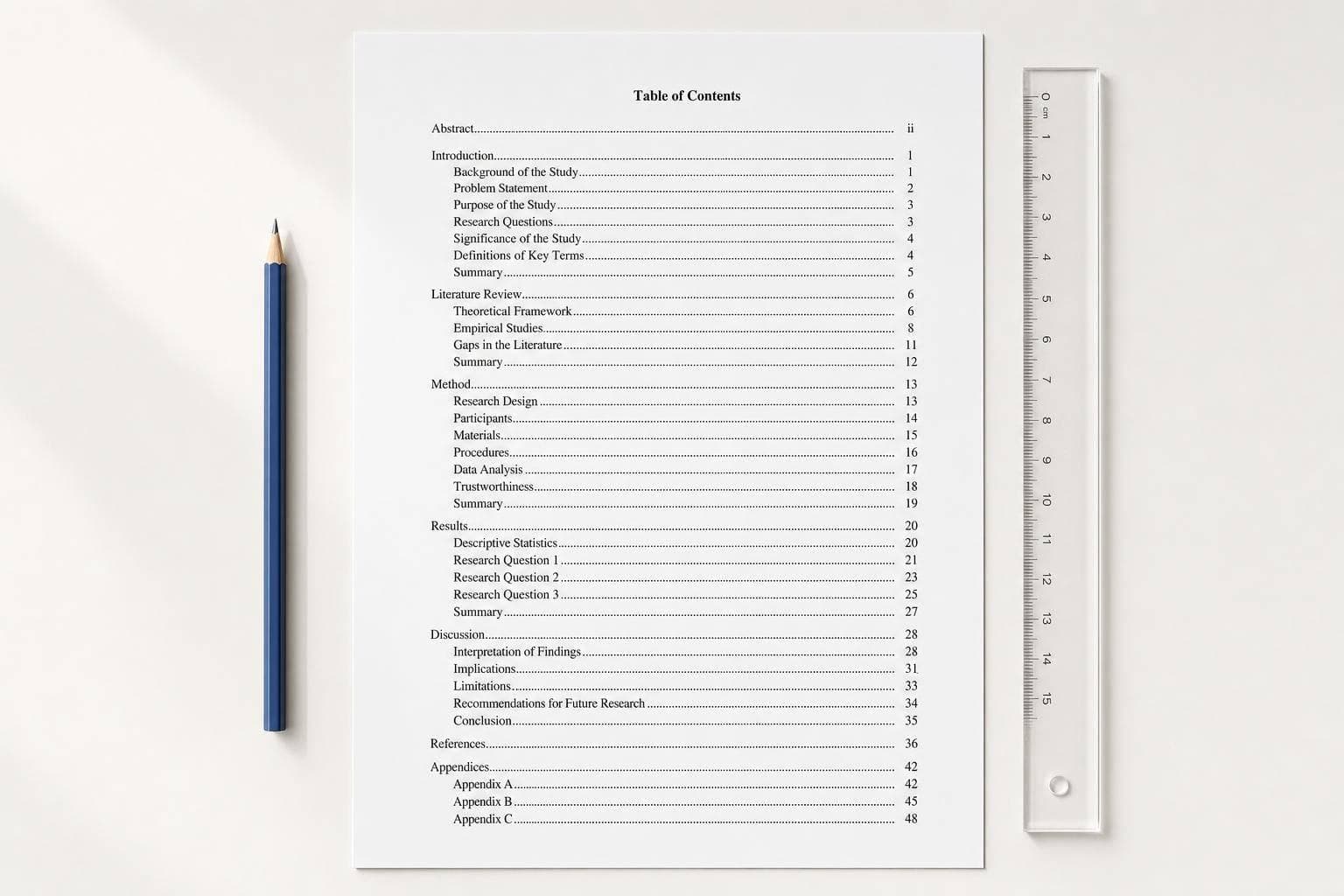
How to Create an APA Table of Contents (Student and Professional Papers)
APA 7 does not require a table of contents_ for most papers_. But if your instructor, department, or school asks for one, I’d keep it simple: put it in the front matter, use the same font as the paper, double-space it, indent entries by heading level, and align page numbers on the right.
Here’s the short version:
- APA 7 makes the TOC optional
- It goes on its own page
- Student papers usually place it after the title page
- Professional papers usually place it after the abstract
- Level 1 headings start flush left
- Level 2 headings are indented 0.5 inches
- Level 3 headings are indented 1.0 inch
- Page numbers go flush right
- Dot leaders can be used, but they are not required
- Title page and abstract should not appear as TOC entries
- After edits, I should update the TOC so headings and page numbers stay correct
About 90% of TOC problems come from small formatting misses: old page numbers, wrong heading levels, manual spacing, or entries that should not be listed. The fix is simple: use built-in heading styles in Word or Google Docs, then refresh the table before turning the paper in.
If I need a quick side-by-side check, this sums up the main paper-type differences:
| Feature | Student Paper | Professional Paper |
|---|---|---|
| Header | Page number only | Running head + page number |
| TOC location | After title page | After abstract |
| Abstract | Often not required | Required |
| Author note | Not used | Required |
Bottom line: if I’m making an APA table of contents, I should focus on placement, heading levels, spacing, and right-aligned page numbers.
How to Create a Table of Contents in Microsoft Word: APA 7th Edition

APA Table of Contents Formatting Rules
Set the contents page to APA format with 1-inch margins, double spacing, and the same font used in the paper body.
Title, Margins, Spacing, and Font
Use either "Table of Contents" or "Contents" as the page title. Place it on the first line of the page, centered and bold. The font should match the rest of the paper.
How Heading Levels Appear in the Contents Page
On the contents page, list headings as plain text rather than showing the formatting used in the paper body. Write each entry in title case.
Indent each entry based on its heading level:
- Level 1 headings: flush left
- Level 2 headings: indented 0.5 inches from the left margin
- Level 3 headings: indented 1.0 inch
- Each deeper level adds another 0.5 inch
Include at least all Level 1 and Level 2 headings. Add lower-level headings only if they make the page easier to use.
After that, match every heading entry to the correct page number.
Page Numbers, Right Alignment, and Dot Leaders
Page numbers should be aligned flush right. Dot leaders are optional.
| Formatting Element | APA 7 Requirement |
|---|---|
| Margins | 1 inch on all sides |
| Line Spacing | Double-spaced, with no extra blank lines |
| Title | "Contents" or "Table of Contents" - bold and centered |
| Font | Same as the paper body (for example, 12-pt Times New Roman or 11-pt Calibri) |
| Level 1 Heading | Flush left |
| Level 2 Heading | Indented 0.5 inches |
| Level 3 Heading | Indented 1.0 inch; each deeper level adds another 0.5 inch |
| Entry Page Numbers | Flush right |
| Dot Leaders | Optional |
With those rules set, the next move is building the contents page in Word or Google Docs.
How to Build an APA Table of Contents, Step by Step
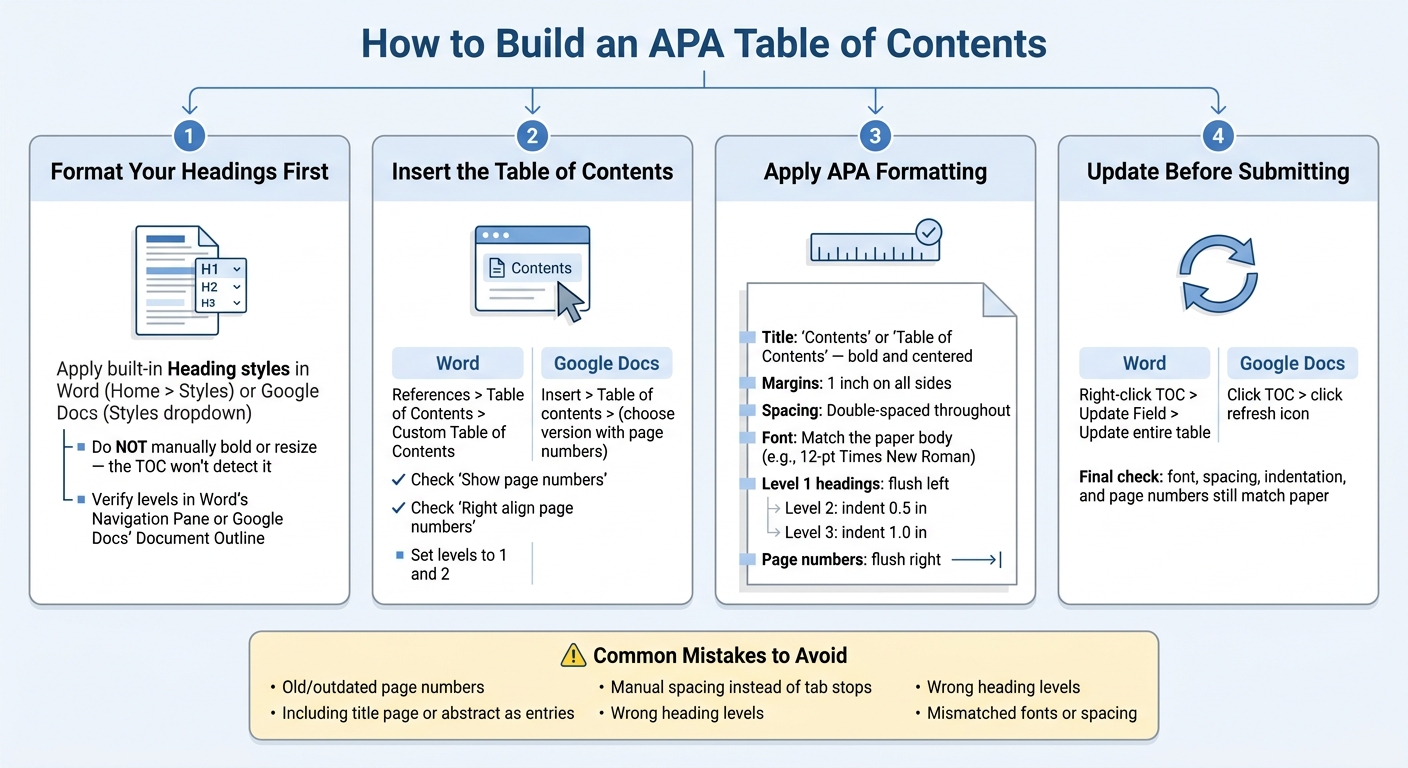
How to Create an APA Table of Contents: Step-by-Step Guide
Format Your Paper's Headings Before You Start
Before you build the TOC, set up your paper's headings with APA styles. This part matters more than it may seem. The TOC only pulls from heading styles your document can read. If you just make a heading look bold or larger by hand, it won't show up in the TOC.
In Word, apply the matching Heading style from Home > Styles, then update that style so it matches APA formatting. In Google Docs, highlight the heading text and pick the correct level from the Styles dropdown in the toolbar. Then use Word's Navigation Pane or Google Docs' Document Outline to make sure each heading shows up at the right level.
Once those styles are set, you can insert the TOC from your word processor.
Create the Table of Contents in Microsoft Word and Google Docs
Place your cursor where the TOC should go. In Word, open References > Table of Contents > Custom Table of Contents. Check "Show page numbers" and "Right align page numbers" so the page numbers line up on the right. Then set the TOC to include the heading levels you use, which is usually Levels 1 and 2.
In Google Docs, go to Insert > Table of contents and choose the option with page numbers. After the TOC appears, make sure the font matches the rest of the paper and that the spacing stays double-spaced throughout.
Update the Table After You Make Edits
Any time you change a heading or move text enough to shift page numbers, update the TOC. In Word, right-click the table and select Update Field, then choose Update entire table so it also pulls in heading text changes. In Google Docs, click the TOC and use the refresh icon that appears.
After you update it, give it a quick check. Make sure the font, spacing, and indentation still match the paper body.
After the TOC is updated, the next section shows how student and professional papers handle front matter differently.
sbb-itb-f7d34da
Student vs. Professional APA Papers: Key Differences
What Stays the Same in Both Paper Types
APA TOC formatting stays the same in both paper types. Use the same font as the rest of the paper, keep everything double-spaced, and follow APA heading indentation.
Header and Front-Matter Differences
The biggest differences show up in the header and front matter.
Student papers use only a page number in the top-right corner of the header. Professional papers use a running head plus a page number in the header. The running head is an abbreviated title in ALL CAPS, and it must be 50 characters or fewer, including spaces.
The TOC also appears in a different spot depending on the paper type. In a student paper, it goes after the title page. In a professional paper, it goes after the abstract.
Comparison Table: Student Paper vs. Professional Paper
Use the table below for a quick side-by-side check.
| Feature | Student Paper | Professional Paper |
|---|---|---|
| Header | Page number only (top right) | Running head + page number |
| TOC Location | After title page | After abstract |
| Abstract | Generally not required | Required |
| Author Note | Not used | Required |
A Finished Example, Common Mistakes, and a Final Checklist
Sample APA Table of Contents Layout
Here’s a sample APA-style table of contents.
Contents
Introduction 1
Literature Review 3
Historical Background 4
Current Research 6
Quantitative Studies 7
Methodology 9
Results 11
Discussion 13
References 15
Appendix A 17
Apply the same formatting rules covered above. This layout works for both student and professional papers. The only difference is the front matter around it.
Use this sample as a guide. Then review the common mistakes below before you turn in your paper.
Common Errors to Fix Before You Submit
The mistake people make most often is turning in an old TOC. If you change headings or page numbers, update the TOC too.
A few other errors show up all the time:
- Including the title page or abstract as TOC entries. Those pages do not belong in the table of contents.
- Using manual spaces so page numbers look jagged instead of neatly right-aligned.
- Adding too many heading levels, which makes the page messy. Most papers only need up to three levels.
- Forgetting title case capitalization for each entry.
- Using TOC formatting that doesn’t match the rest of the paper.
Conclusion: The Key Rules to Remember
Use a table of contents for longer papers or any paper where your instructor or school asks for one. After you compare your draft with the sample and fix the common errors, focus on the three basics: correct heading levels, right-aligned page numbers, and
FAQs
Do I need an APA table of contents?
No. An APA table of contents is not a standard requirement for APA Style papers.
That said, it often shows up in longer, more complex documents like theses and dissertations. You may also need one if an instructor or editor asks for it.
If you include a table of contents, place it between the abstract and introduction. Use the same font as the rest of the paper, and keep it under two pages.
What headings should go in the TOC?
Include all Level 1 and Level 2 headings from your paper in the table of contents. You can add lower-level headings too, but that part is optional. In many professional papers and dissertations, those lower-level headings help give readers a clearer map of the document.
Each entry in the TOC should use the exact same wording as the heading in the paper and follow the same heading structure. Also, keep the table of contents to no more than two pages.
How do I fix a TOC after edits?
Right-click anywhere in the table of contents and select Update Field. Then choose whether you want to update page numbers only or the entire table.
For most edits, choose Update entire table. That way, changes to headings or newly added sections will show up the way they should. Click OK to apply the update.